**Are you interested in building an AI-powered chatbot that can answer questions about financial charts? If so, this article might be interesting for you!**
Generated with Grok
AI-powered chatbots for analyzing financial charts offer great potential for the financial sector. These chatbots can identify chart patterns and trends, helping investors make informed decisions.
Creating multimodal chatbots can be time-consuming and complex, but Python packages like Chainlit and Agno make it much easier. With Agno, you can build multimodal agents that handle text, image, audio, and video. Agents are intelligent programs that solve problems autonomously.
In this step-by-step guide, we'll show you how to build an AI-powered chatbot that can analyze financial charts locally. In our demo app, we use a financial chart from the [StocksGuide](/out/stocksguide/){:target="_blank" rel="sponsored nofollow noopener"}* app.
Let's get started.
## Sneak Peak
## Tech Stack
For our demo app, we use Meta’s `Llama3.2-vision` as LLM. The Llama 3.2-vision models are optimized for visual recognition, image reasoning, captioning, and answering general questions about an image.
To create the app, we use the following frameworks:
* Chainlit as an intuitive chatbot UI
* Agno to implement the AI agent
ℹ️ We've written a [comprehensive article about Chainlit](/software-engineering/build-a-local-chatbot-in-minutes-with-chainlit/). If you are not familiar with Chainlit, we recommend reading this article first.
## Prerequisites
You will need the following prerequisites:
* Python package manager of your choice (We use [conda](https://docs.conda.io/en/latest/miniconda.html){:target="_blank" rel="noopener"}).
* A code editor of your choice (We use [Visual Studio Code](https://code.visualstudio.com/){:target="_blank" rel="noopener"}).
* Download [Ollama](https://ollama.com){:target="_blank" rel="noopener"} and install [Llama3.2-vision](https://ollama.com/library/llama3.2-vision){:target="_blank" rel="noopener"}. Make sure that it runs on your computer.
* A computer with a GPU (We use a MacBook Pro M4 Max 48 GB).
*We recommend a computer with at least 16GB RAM to run the examples in this guide efficiently.*
## Step-by-Step Guide
### Step 1: Setup the development environment
* **Create a conda environment**: A virtual environment keeps your main system clean.
```bash
conda create -n chat-with-charts-agent python=3.12.7
conda activate chat-with-charts-agent
```
* **Clone the GitHub repo**:
```bash
git clone https://github.com/tinztwins/finllm-apps.git
```
* **Install requirements**: Go to the folder `chat-with-financial-charts` and run the following command:
```bash
pip install -r requirements.txt
```
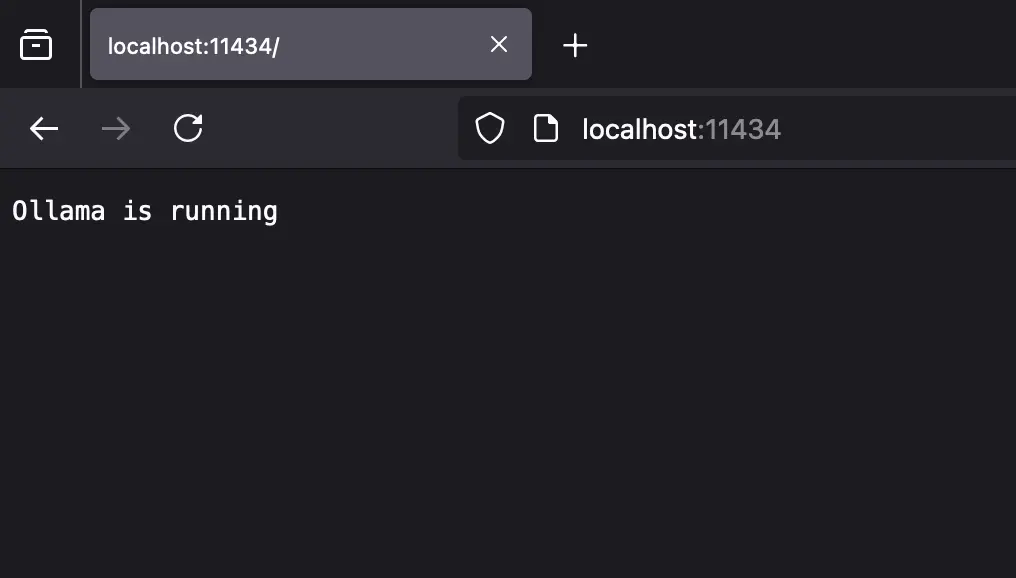
* Make sure that **Ollama** is running on your computer:
### Step 2: Create the app with Chainlit and Agno
* **Import required libraries**: First, we need to import all necessary libraries. In addition to the Chainlit package, we import Ollama, Agent, and Image via Agno.
```python
import chainlit as cl
from agno.agent import Agent
from agno.models.ollama import Ollama
from agno.media import Image
```
* **Start a new chat session**: Every Chainlit app follows a [life cycle](/software-engineering/build-a-local-chatbot-in-minutes-with-chainlit/#chat-life-cycle). The framework starts a new chat session whenever a user opens the Chainlit app. When a new chat session starts, Chainlit triggers the `on_chat_start()` function. Moreover, we can store data in memory during the user session. This allows us to keep the agent object using the command `cl.user_session.set("agent", agent)`.
```python
@cl.on_chat_start
async def on_chat_start():
# Agent logic (Learn more in the next section)
cl.user_session.set("agent", agent)
```
* **Create an agent**: In Agno, you can create an agent with `Agent()`. You can pass this object several parameters, e.g. `model`, `description`, `instructions`, and `add_history_to_messages`. We use Llama 3.2-Vision as a large language model. It provides reasoning and visual recognition capabilities to the agent.
* **Description and instructions**: With the `description` parameter, you can guide the overall behavior of the agent. This information is added to the agent's system message at the beginning. In addition, you can provide the agent with a list of instructions using the `instructions` parameter.
* **Add chat history to the agent**: To allow the agent to access the chat history during the conversation, we set the parameter `add_history_to_messages` to `True`. `markdown=True` ensures that the output format is Markdown.
```python
# Agent Code
agent = Agent(
model=Ollama(id="llama3.2-vision"),
description="You are a helpful AI-powered investment analyst who can analyze financial charts.",
instructions=["Analyze the images carefully and give precise answers."],
add_history_to_messages=True,
markdown=True,
)
```
* **New message from the user**: The `on_message` decorator reacts to messages from the Chainlit UI. When a new message is received, the function `on_message(message: cl.Message)` is called. The `message` object contains the user's input.
* **Store images in a list**: The first line in the `on_message()` function is a [list comprehension](/data-science/boost-your-python-expertise-with-ease/#tip-4-use-list-comprehension-instead-ofloops) and creates a list of image objects from files in `message.elements` with an image MIME type. Moreover, we can access the agent object from memory.
* **Run the agent and stream response**: In the `for` loop, we pass the images and the user's message to the LLM. The `make_async()` function takes a synchronous function and returns an asynchronous function that runs the original function in a separate thread. The `agent.run()` function is used to execute an agent and obtain a response. We set `stream=True` so that we receive the answer in a stream.
```python
@cl.on_message
async def on_message(message: cl.Message):
images = [Image(filepath=file.path) for file in message.elements if "image" in file.mime]
agent = cl.user_session.get("agent")
msg = cl.Message(content="")
for chunk in await cl.make_async(agent.run)(message.content, images=images, stream=True):
await msg.stream_token(chunk.get_content_as_string())
await msg.send()
```
### Step 3: Run the app
* **Start the demo app**: Navigate to the project folder and run the following command:
```bash
chainlit run app.py
```
* **Access the demo app**: Open `http://localhost:8000` in your web browser and enter a question about the uploaded financial chart.
## Conclusion
Great! You have built a local AI agent to chat with financial charts. The Python libraries Chainlit and Agno offer a solid base for building advanced AI applications.
You can use the demo app as a starting point for your next project. Feel free to share your project on social media and mention us so we can see what you're working on.
Happy coding!
💡 Do you enjoy our content and want to read super-detailed guides about AI Engineering? If so, be sure to check out our premium offer!