**Complete LLM App with Less Than 30 Lines of Python Code (Step-by-Step Guide)**
Generated with Grok
Developing an LLM app can be time-consuming and complex, but the right tools can make it much easier. In addition, more and more small, powerful models are entering the market, allowing you to run LLM apps entirely locally and for free. That opens up new possibilities for building AI apps.
In this tutorial, we'll show you how to build a simple PDF Chatbot App using RAG and Llama 3.2. Finally, you can upload earnings reports in PDF form, ask questions, and get accurate answers.
## Tech Stack
The chatbot uses Llama 3.2 with RAG to analyze the content of an Earnings Report PDF and provides precise answers based on specific user questions.
For this we use:
* Chainlit as an intuitive user-interface
* Embedchain framework for the RAG functionality
* ChromaDB as a vector storage of the PDF content
## Prerequisites
You will need the following prerequisites:
* Python package manager of your choice like [conda](https://docs.conda.io/en/latest/miniconda.html){:target="_blank" rel="noopener"}.
* A code editor of your choice like [Visual Studio Code](https://code.visualstudio.com/){:target="_blank" rel="noopener"}.
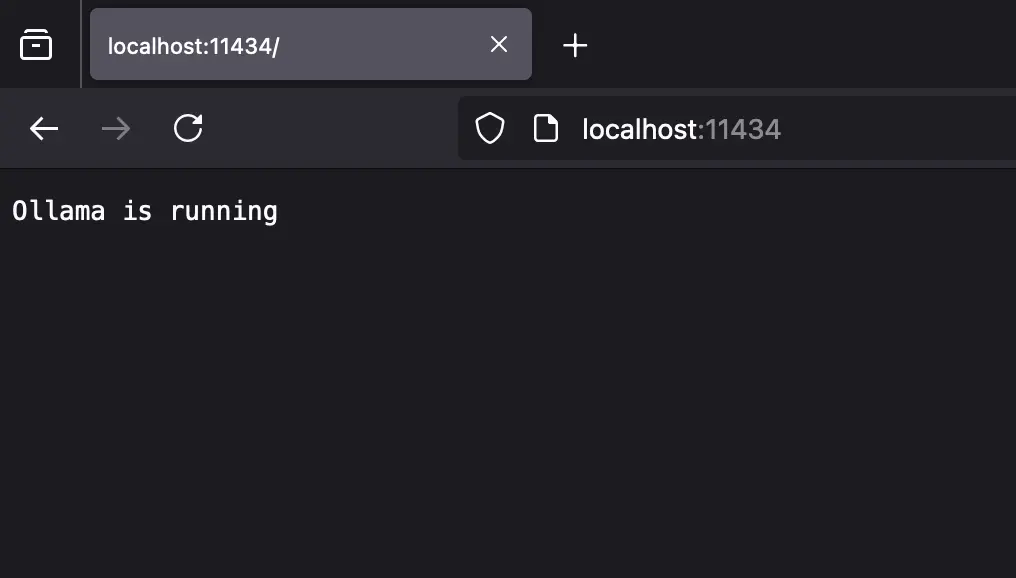
* Download [Ollama](https://ollama.com){:target="_blank" rel="noopener"} and install [Llama3.2](https://ollama.com/library/llama3.2){:target="_blank" rel="noopener"} and [all-minilm](https://ollama.com/library/all-minilm){:target="_blank" rel="noopener"}. Make sure that it runs on your computer.
## Step-by-Step Guide
### Step 1: Setup the development environment
* **Create a conda environment**: It makes sense to create a virtual environment to keep your main system clean.
```bash
conda create -n demo-app python=3.12.7
conda activate demo-app
```
* **Clone the GitHub repo**:
```bash
git clone https://github.com/tinztwins/finllm-apps.git
```
* **Install requirements**: Go to the folder `chat-with-earnings-reports` and execute the following command:
```bash
pip install -r requirements.txt
```
* Make sure that Ollama is running on your system:
### Step 2: Create the Chainlit App
* **Import required libraries**: First, we import chainlit and embedchain.
```python
import chainlit as cl
from embedchain import Pipeline as App
```
* **Start a new chat session**: Every Chainlit app follows a [life cycle](/software-engineering/build-a-local-chatbot-in-minutes-with-chainlit/#chat-life-cycle). When a user opens your Chainlit app, a new chat session is created. The `on_chat_start()` function is triggered when a new chat session begins. First, the user must upload the earnings report. The content of the PDF is processed and added to the vector database. Finally, the user sees a preview and receives confirmation that the file has been successfully uploaded.
```python
@cl.on_chat_start
async def on_chat_start():
app = App.from_config(config_path="config.yml")
files = None
while files == None:
files = await cl.AskFileMessage(
content="Please upload an Earnings Report (PDF file) to get started!", accept=["application/pdf"], max_size_mb="10", max_files=1
).send()
text_file = files[0]
app.add(text_file.path, data_type='pdf_file')
cl.user_session.set("app", app)
elements = [
cl.Pdf(name="pdf", display="inline", path=text_file.path, page=1)
]
await cl.Message(content="Your PDF file:", elements=elements).send()
await cl.Message(
content="✅ Successfully added to the knowledge database!"
).send()
```
* **Configure Embedchain settings**: We use the `all-minilm:latest` model as an embedding model because it is extremely efficient and fast. In addition, we use `llama3.2:latest` as a large language model and `chroma` as a vector database. The `config.yml` file looks as follows:
```yaml
embedder:
provider: ollama
config:
model: 'all-minilm:latest'
base_url: 'http://localhost:11434'
llm:
provider: ollama
config:
model: 'llama3.2:latest'
temperature: 0.5
stream: true
base_url: 'http://localhost:11434'
vectordb:
provider: chroma
config:
dir: db
allow_reset: true
```
* **New message from the user**: The `on_message(message: cl.Message)` function is called when a new message from the user is received. The LLM processes the message and returns a response. The use of a vector database increases the accuracy of the response.
```python
@cl.on_message
async def on_message(message: cl.Message):
app = cl.user_session.get("app")
msg = cl.Message(content="")
for chunk in await cl.make_async(app.chat)(message.content):
await msg.stream_token(chunk)
await msg.send()
```
ℹ️ If you want to learn more about building Conversational AI Apps with Chainlit, check out our [introduction article on Chainlit](/software-engineering/build-a-local-chatbot-in-minutes-with-chainlit/).
### Step 3: Run the App
* **Start the Chainlit App**: Navigate to the project folder and run the following command:
```bash
chainlit run app.py
```
* **Access the Chatbot App**: Open `http://localhost:8000` in your browser, upload a file, and ask questions.
## Conclusion
You have successfully built a local PDF Chatbot to chat with earnings reports using Llama 3.2 and RAG. The combination of Llama 3.2 and ChromaDB provides a strong foundation for building more advanced applications.
You can expand this project by adding more document types or queries for multiple documents. You now have the tools to harness the potential of LLM Apps fully.
Happy coding!
💡 Do you enjoy our content and want to read super-detailed guides about AI Engineering? If so, be sure to check out our premium offer!