**AI agents are changing the way humans interact with computers. They operate autonomously, which makes them different from traditional software that follows a pre-programmed sequence of steps.**
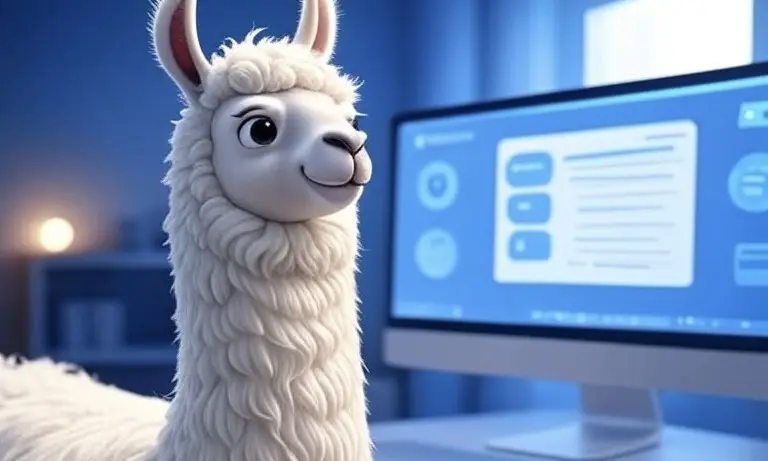
Generated with AI
The big tech companies have already started integrating AI agents into their products. In the next few years, many app developers will use AI agents to make their apps smarter and easier to use.
That’s why developers need to address this topic. In addition to selecting the LLM models, other components like tools, knowledge, storage, memory, and reasoning are also crucial in developing AI agents.
In this step-by-step guide, we show you how to add knowledge and storage to your agents. Both components improve the performance of an AI agent.
Knowledge provides an agent with domain-specific information to make better decisions and deliver accurate responses. An agent can search the knowledge base at runtime. The knowledge is stored in a vector database.
With storage, an agent can save the session history and state in a database. This makes an agent stateful, allowing for long-term conversations.
Let's dive into the implementation.
## Sneak Peak
## Tech Stack
For our demo app, we use Meta’s `Llama3.1:8b` as LLM. Llama 3.1:8b is a multilingual and instruction-tuned language model. It's perfect for tasks like text generation, summarization, coding assistance, and tool calling.
To create the app, we use the following technologies:
* [Agno](https://docs.agno.com/introduction){:target="_blank" rel="noopener"} to implement the AI agent
* Agent UI as an intuitive Agent interface
## Prerequisites
You will need the following prerequisites:
* Python package manager of your choice (We use [conda](https://docs.conda.io/en/latest/miniconda.html){:target="_blank" rel="noopener"}).
* A code editor of your choice (We use [Visual Studio Code](https://code.visualstudio.com/){:target="_blank" rel="noopener"}).
* Download [Ollama](https://ollama.com){:target="_blank" rel="noopener"} and install [Llama3.1:8b](https://ollama.com/library/llama3.1:8b){:target="_blank" rel="noopener"}. Make sure that it runs on your computer.
* A computer with a GPU (We use a MacBook Pro M4 Max 48 GB).
*We recommend a computer with at least 16GB RAM to run the examples in this guide efficiently.*
## Step-by-Step Guide
### Step 1: Setup the development environment
* **Create a conda environment**: A virtual environment keeps your main system clean.
```bash
conda create -n agent-knowledge-storage python=3.12.7
conda activate agent-knowledge-storage
```
* **Clone the GitHub repo**:
```bash
git clone https://github.com/tinztwins/finllm-apps.git
```
* **Install requirements**: Go to the folder `agent-knowledge-storage` and run the following command:
```bash
pip install -r requirements.txt
```
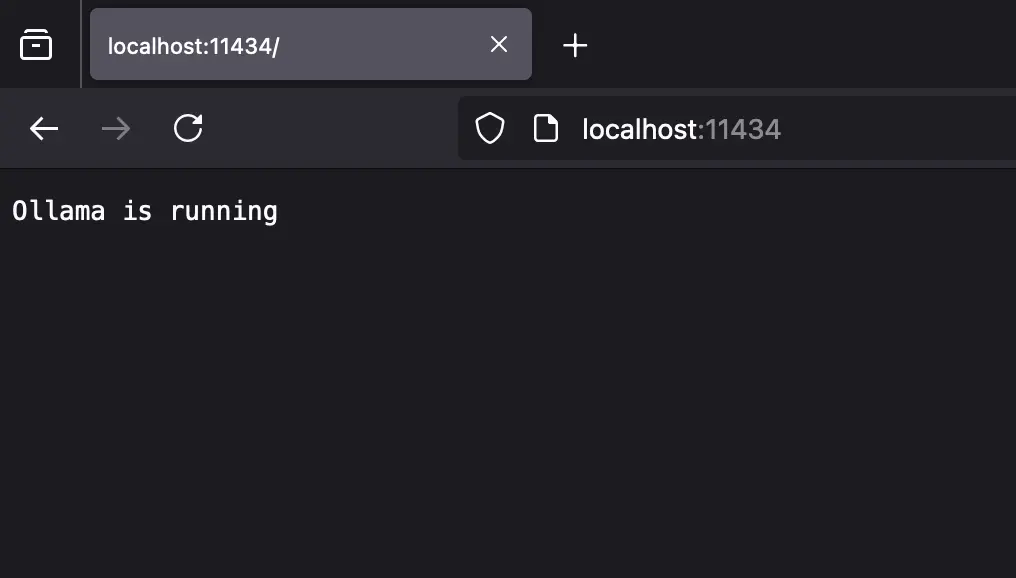
* Make sure that **Ollama** is running on your computer:
### Step 2: Create the AI Agent with Agno
* **Import required libraries**: First, we need to import all necessary libraries.
```python
from agno.agent import Agent
from agno.embedder.ollama import OllamaEmbedder
from agno.knowledge.website import WebsiteKnowledgeBase
from agno.models.ollama import Ollama
from agno.storage.sqlite import SqliteStorage
from agno.vectordb.lancedb import LanceDb, SearchType
from agno.playground import Playground
```
* **Load information in a knowledge base**: The `WebsiteKnowledgeBase` class reads websites, converts them into vector embeddings, and loads them into a vector database. We use LanceDB as the vector database. In addition, we use `all-minilm:latest` as the embedding model via Ollama.
```python
knowledge = WebsiteKnowledgeBase(
urls=["https://tinztwinshub.com/"],
vector_db=LanceDb(
uri="tmp/lancedb",
table_name="tinztwinshub_docs",
search_type=SearchType.hybrid,
embedder=OllamaEmbedder(id="all-minilm:latest", dimensions=384),
),
)
```
* **Store agent sessions in a database**: We store the agent sessions in an SQLite database. This way, the agent also has access to the session history during long conversations.
```python
storage = SqliteStorage(table_name="agent_sessions", db_file="tmp/agent.db")
```
* **Create an agent**: In Agno, you can create an agent with `Agent()`. You can pass this object several parameters, e.g. `name`, `model`, `instructions`, `knowledge`, `storage`, and `add_history_to_messages`. Through the `instructions` parameter, you can provide the agent with a list of instructions.
* **Knowledge and Storage**: We can assign the respective variables from above to the parameters for knowledge and storage. This gives the agent access to the session history and the knowledge base.
* **Add chat history to the agent**: To allow the agent to access the chat history during the conversation, we set the parameter `add_history_to_messages` to `True`. `markdown=True` ensures that the output format is Markdown.
```python
# Agent Code
agent = Agent(
name="Tinz Twins Hub Assist",
model=Ollama(id="llama3.1:8b"),
instructions=[
"Search your knowledge before answering the question.",
"Only include the output in your response. No other text.",
],
knowledge=knowledge,
storage=storage,
add_history_to_messages=True,
markdown=True,
)
```
* **Serve the agent via a Playground Server**: To use the Agent UI, we need to provide the agent as a playground server. The Python code looks as follows:
```python
playground = Playground(agents=[agent])
app = playground.get_app()
if __name__ == "__main__":
agent.knowledge.load(recreate=True)
playground.serve("app:app", reload=True)
```
### Step 3: Set up the Agno Agent UI
*You need to install Node.js and npm on your system.*
To clone the Agent UI, run the following command in your terminal:
```bash
npx create-agent-ui@latest
```
### Step 4: Run the demo app
Navigate to the project folder and run the following commands.
**Start the Playground Server**:
```bash
python app.py
```
The playground server is running at `http://localhost:7777`.
**Start the Agent UI**:
```bash
cd agent-ui && npm run dev
```
Open `http://localhost:3000` in your web browser and enter a question about Tinz Twins Hub.
## Conclusion
Awesome! You have built a local AI agent with knowledge and storage using Agno. The Python library Agno is a solid base for developing advanced AI applications. It makes it easy for developers to create powerful agents.
The Agno Agent UI is an intuitive interface that allows you to chat with your agents, view their knowledge, and more. You can use the demo app as a starting point for your next project.
Happy coding!
💡 Do you enjoy our content and want to read super-detailed guides about AI Engineering? If so, be sure to check out our premium offer!