**Screen is a window manager for the console. It is possible to create and manage several virtual console sessions via a single access (e.g. ssh). In addition, sessions can be disconnected and resumed later.** 

<figure class="">
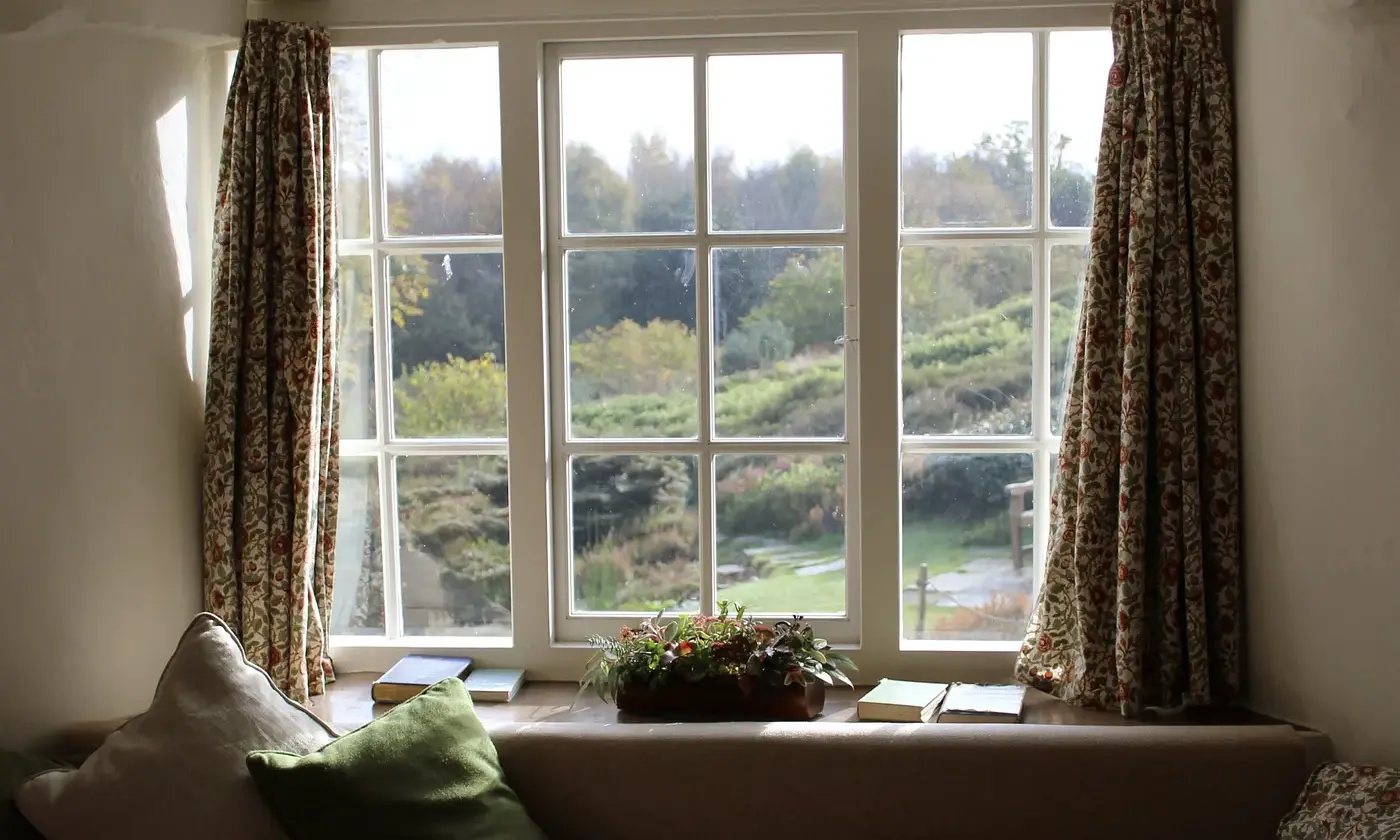
  <img src="/assets/img/blog/2022-12-25-manage-multiple-console-sessions-via-ssh/header_img.webp"
       alt="A window with a view of a garden"><figcaption>
      Photo by <a href="https://unsplash.com/@robwingate" target="_blank" rel="noopener">Rob Wingate</a> on <a href="https://unsplash.com" target="_blank" rel="noopener">Unsplash</a>

    </figcaption></figure>


Here is a small example to demonstrate the power of **screen**. You log in to a server via ssh and start a program or pull a large Docker image. When you end the ssh session, the program stops automatically. 

<div class="ad-banner" style="margin-bottom: 0.7rem;">
    <hr class="hr-text" data-content="Advertisement*">
    <a href="/out/elevenlabs/" target="_blank" rel="sponsored nofollow noopener"><img src="../../assets/img/ads/elevenlabs.webp" alt="ElevenLabs Partner*" nopin="nopin"></a>
    <small style="display: block; margin-bottom: 0.5rem; margin-top: 0.5rem;"><strong>✨ Read without banner ads? </strong><a href="https://steady.page/en/tinztwins-hub/about" target="_blank" rel="noopener">Become a member</a> or <a href="https://steady.page/en/log_in?publication=tinztwins-hub" target="_blank" rel="noopener">log in</a></small>
</div>

With **screen** you can prevent this behavior. You log in via ssh. Then start **screen** and the desired program. In the next step, you call the detach command and can log out. The program continues to work in the background. You can resume the session with the program the next time you log in via ssh.

In this post, we will introduce the basic functionalities of screen. The steps are the following:

1. Install screen
2. Difference between session and window
3. Important commands
4. Conclusion

<div class="ad-banner" style="margin-bottom: 0.7rem;">
    <hr class="hr-text" data-content="Explore our premium blog articles">
    <a href="https://tinztwinshub.com/membership"><img src="../../assets/img/ads/premium_2.webp" alt="Explore our premium blog articles" nopin="nopin"></a>
    <small style="display: block; margin-bottom: 0.5rem; margin-top: 0.5rem;"><strong>✨ Read without banner ads? </strong><a href="https://steady.page/en/tinztwins-hub/about" target="_blank" rel="noopener">Become a member</a> or <a href="https://steady.page/en/log_in?publication=tinztwins-hub" target="_blank" rel="noopener">log in</a></small>
</div>

## Install screen
Use the following command to install **screen**:

```bash
sudo apt-get install screen
```

You can start **screen** with the following command:

```bash
screen 
```

After calling **screen**, it seems as if nothing has happened. But this is not true, because screen is now running in the background.

## Difference between session and window
You can imagine **screen** like a web browser. A **screen** session corresponds to a browser window and a **screen** window corresponds to a browser tab. Several **screen** sessions can run at the same time. In addition, several screen windows can be opened in each **screen** session.

<div class="ad-banner" style="margin-bottom: 0.7rem;">
    <hr class="hr-text" data-content="Advertisement*">
    <a href="/out/reclaimai/" target="_blank" rel="sponsored nofollow noopener"><img src="../../assets/img/ads/reclaimai.webp" alt="Reclaimai Partner*" nopin="nopin"></a>
    <small style="display: block; margin-bottom: 0.5rem; margin-top: 0.5rem;"><strong>✨ Read without banner ads? </strong><a href="https://steady.page/en/tinztwins-hub/about" target="_blank" rel="noopener">Become a member</a> or <a href="https://steady.page/en/log_in?publication=tinztwins-hub" target="_blank" rel="noopener">log in</a></small>
</div>

## Important commands
First, you create a new session. The following command creates a new session with the name "session1".

```bash
screen -S session1
```

### Keyboard shortcuts
* Ctrl + A + C: Creates a new window in a session
* Ctrl + A + Space: Switching between the individual windows of a session
* Ctrl + A + D: Disconnect (detach) the connection to the current session. The session then continues to run in the background

### More commands
Resumes the session with the name “session1”:

```bash
screen -r session1
```

Resumes the session if only one session exists:
```bash
screen -r
```

Listing of all ongoing screen sessions:
```bash
screen -ls
```

## Conclusion
The window manager **screen** allows tasks to perform in the background. For example, you can connect to a remote computer via ssh and start a program. With **screen**, you can start the program and close the ssh connection again.

<div class="ad-banner">
  <hr>
  💡 Do you enjoy our content and want to read super-detailed guides about AI Engineering? If so, be sure to check out our premium offer!

  <div style="text-align: center; margin-top: 0.7rem;">
    <a href="https://steady.page/en/tinztwins-hub/about" class="btn btn--primary">Unlock Premium</a>      
  </div>
</div>

<div class="ad-banner">
    <hr class="hr-text" data-content="Our Merch Shop">
    <a href="https://shop.tinztwinshub.com/merch/"><img src="../../assets/img/ads/ai_and_coding_merch.webp" alt="AI and Coding Merch" nopin="nopin"></a>
    <small style="display: block; margin-bottom: 0.5rem; margin-top: 0.5rem;"><strong>✨ Read without banner ads? </strong><a href="https://steady.page/en/tinztwins-hub/about" target="_blank" rel="noopener">Become a member</a> or <a href="https://steady.page/en/log_in?publication=tinztwins-hub" target="_blank" rel="noopener">log in</a></small>
</div>